How it works
How Majestic Intelligence works, from booking to proof of delivery.
A shipment arrives, a truck and driver take it, the goods are loaded, driven and unloaded, and the paperwork comes back. Here is how Majestic Intelligence supports each step, and what you see on screen while it happens.
The five steps, in short
Step 1: Set up your network
Facilities on the map, customers, trucks, drivers and their shifts. Routes are calculated along real roads.
Step 2: Book shipments
Customer, pickup, destination, cargo, priority and an optional deadline. In the demo, the scenario’s daily freight is booked again each midnight.
Step 3: Dispatch
Choose from suggested trucks with their reasons, or let planned dispatch assign routine work by the same rules.
Step 4: Follow every job
Heading to pickup, loading, in transit, unloading: on the map, on the board and in plain words.
Step 5: Close and measure
Proof of delivery back, the job complete, and the figures updated for the day and the lane.
Step 1
Set up your network once, on the map.
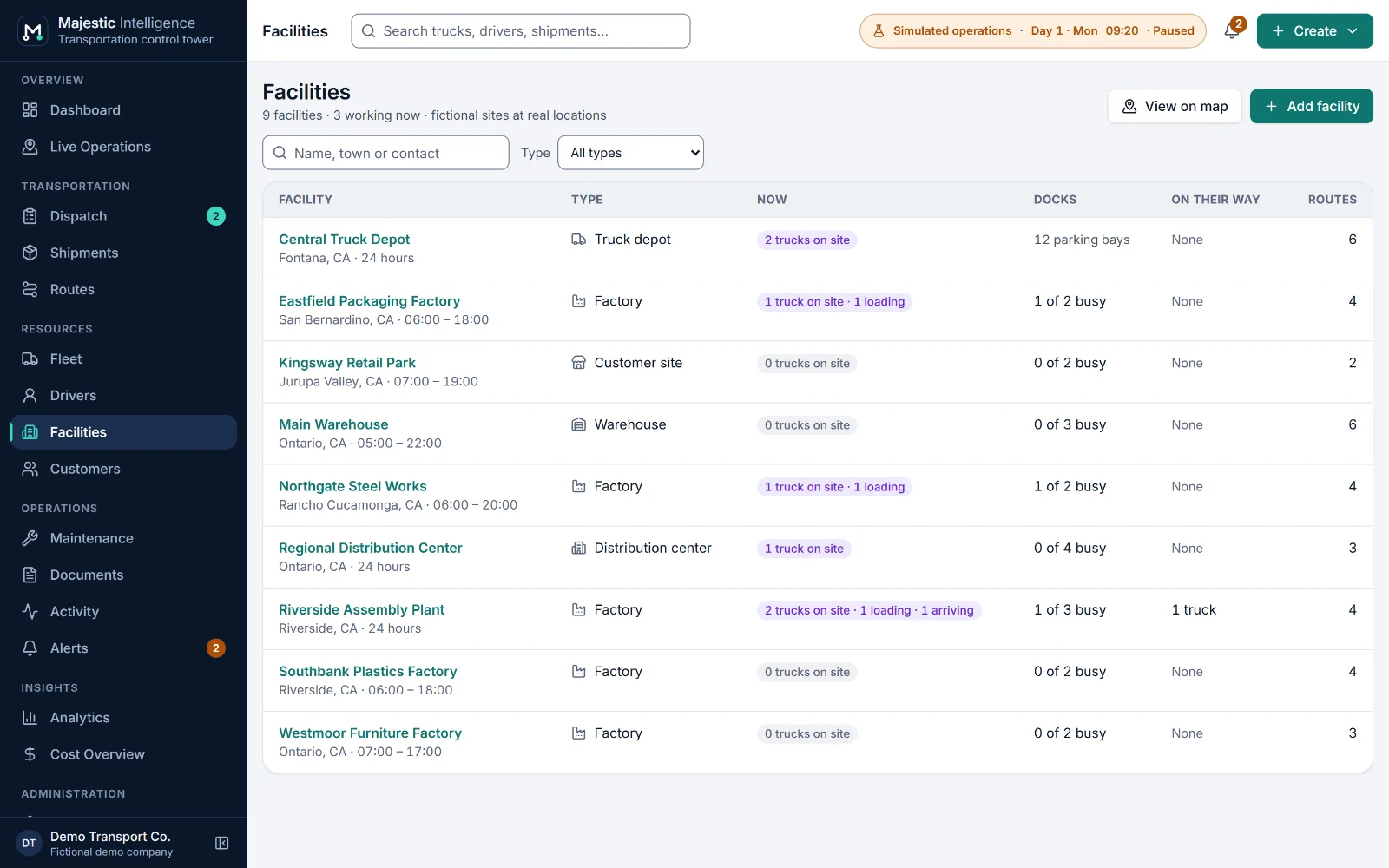
Everything starts with the places your trucks visit and the resources that do the work. Place each facility by clicking the map; Majestic Intelligence joins it to the nearest suitable road and calculates routes between sites along real roads.
- Facilities with docks, parking bays and working hours
- Customers with their usual pickup and delivery sites
- Trucks with body, capacity and home depot
- Drivers with licence class and a daily shift
Step 2
Book shipments as they come in.
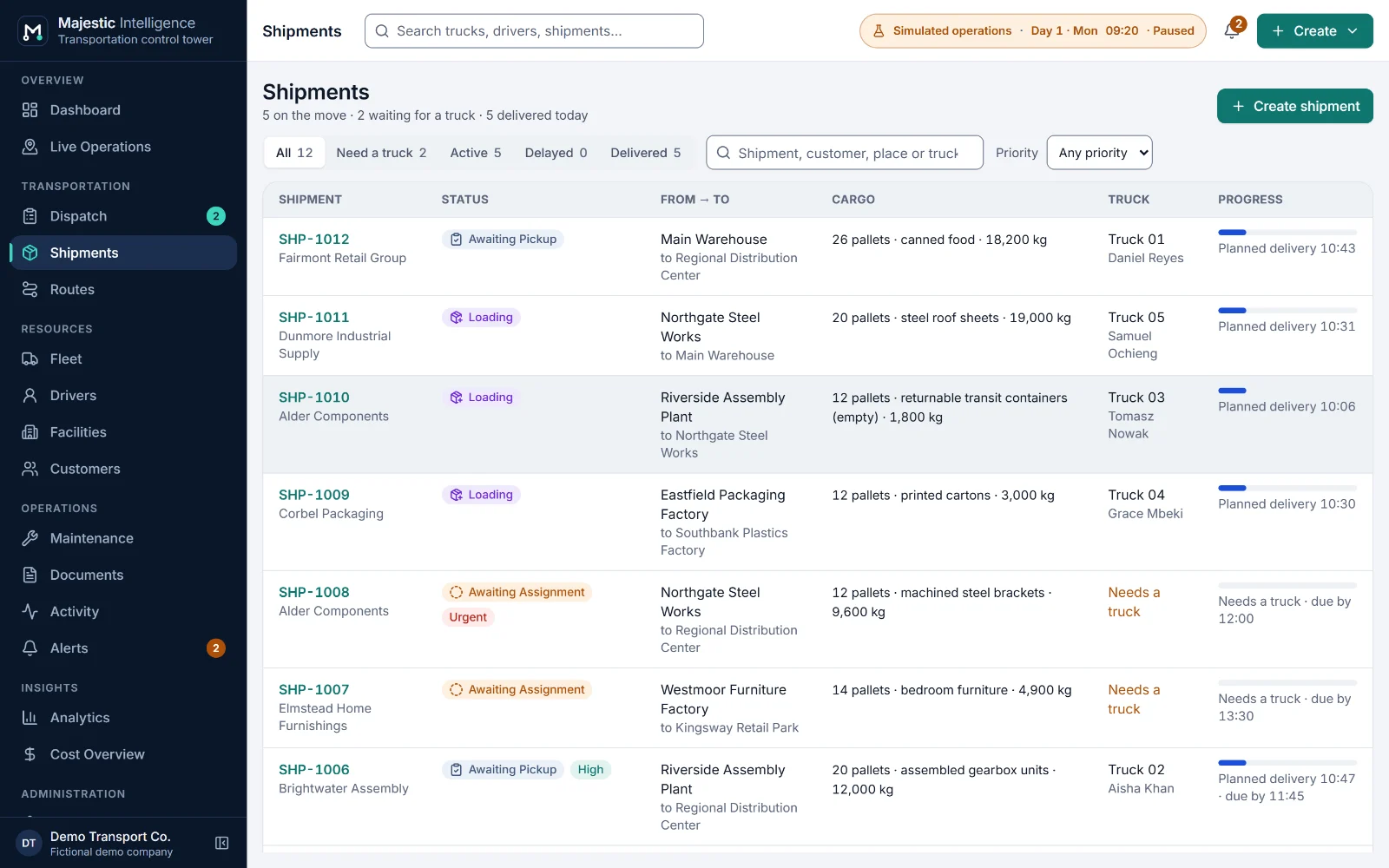
A shipment records the customer, the pickup and destination, the cargo in pallets and kilograms, the priority and, if the customer gave one, a delivery deadline. In the demo, each day’s regular freight is booked again at midnight.
- Standard, High or Urgent priority
- Deadlines from 30 minutes to 24 hours ahead
- Pallets and weight both checked against the truck; a larger order is booked as several shipments
- Book with a truck straight away, or leave it for dispatch
Step 3
Dispatch with the reasons in front of you.
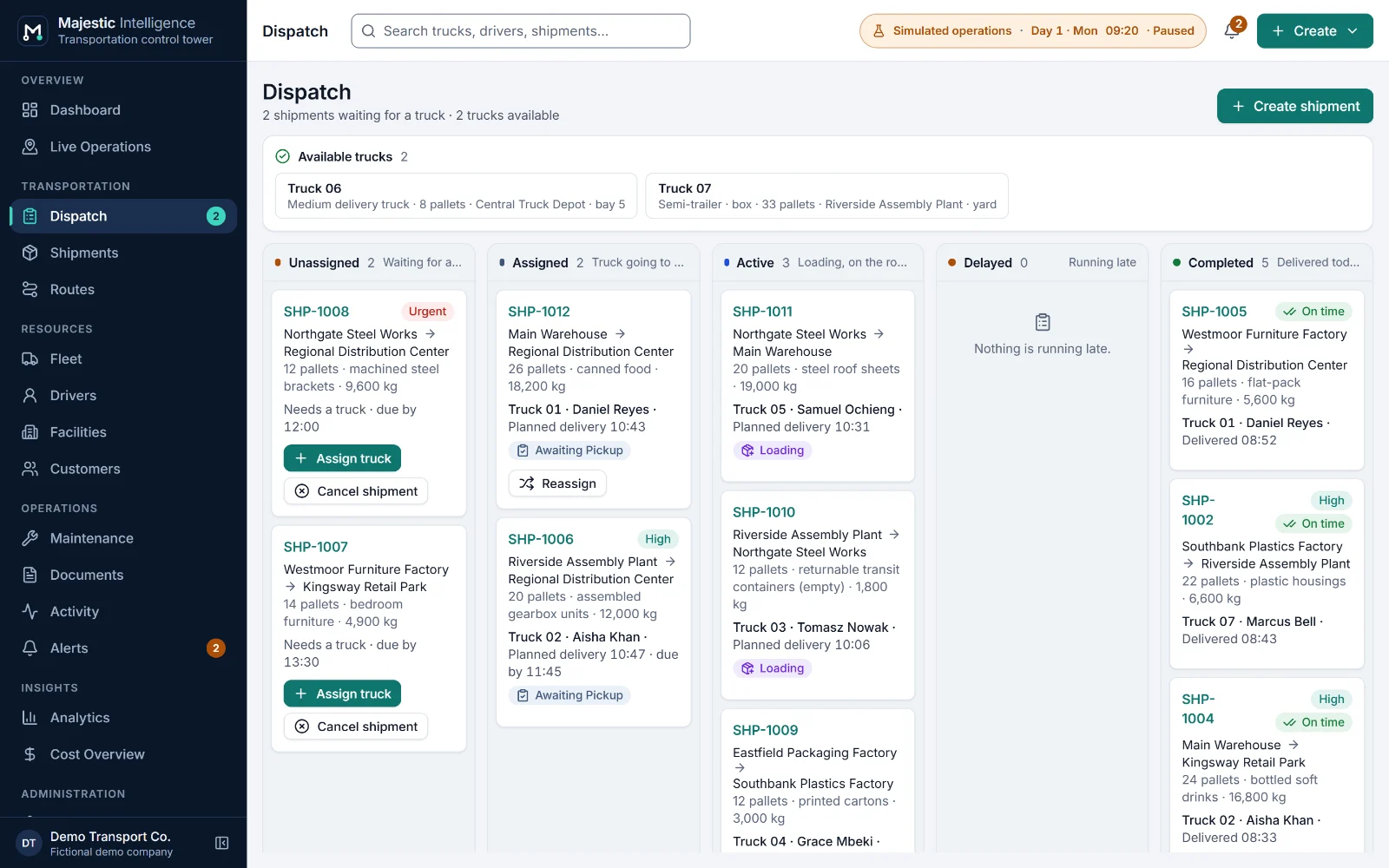
Shipments that need a truck wait on the Dispatch board. Assigning one shows the fleet ranked by simple rules, each truck with its reasons; trucks that cannot take the work say why. Routine bookings can be given out by planned dispatch, using the same rules.
- Suitable truck, earliest at the pickup, meets the deadline
- Smallest truck that fits, most shift left
- Reassign or cancel at the pickup, before loading
- Planned dispatch can be switched off
Step 4
Follow every job without a phone call.
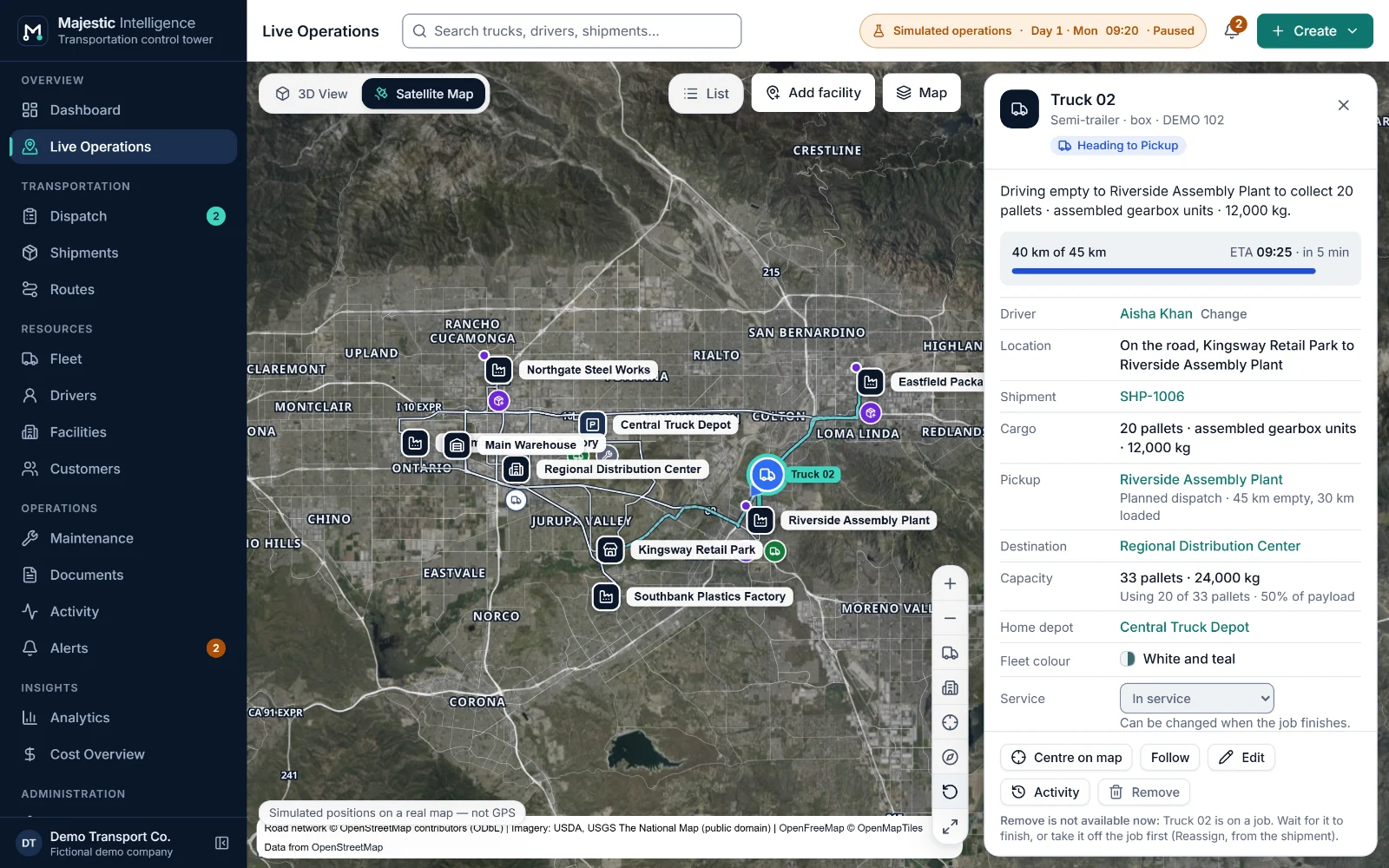
From the moment a truck is assigned, its status, position and ETA follow the job’s stage. Live Operations shows it on the satellite map or the 3D view; the Dashboard and Alerts say what needs attention and what to do.
- Delayed when expected more than ten minutes late, with the cause
- Deadlines at risk before they are missed
- Dock queues, and simulated roadworks in their own scenario
- Notifications for arrivals, deliveries and delays
Step 5
Close and measure while it still matters.
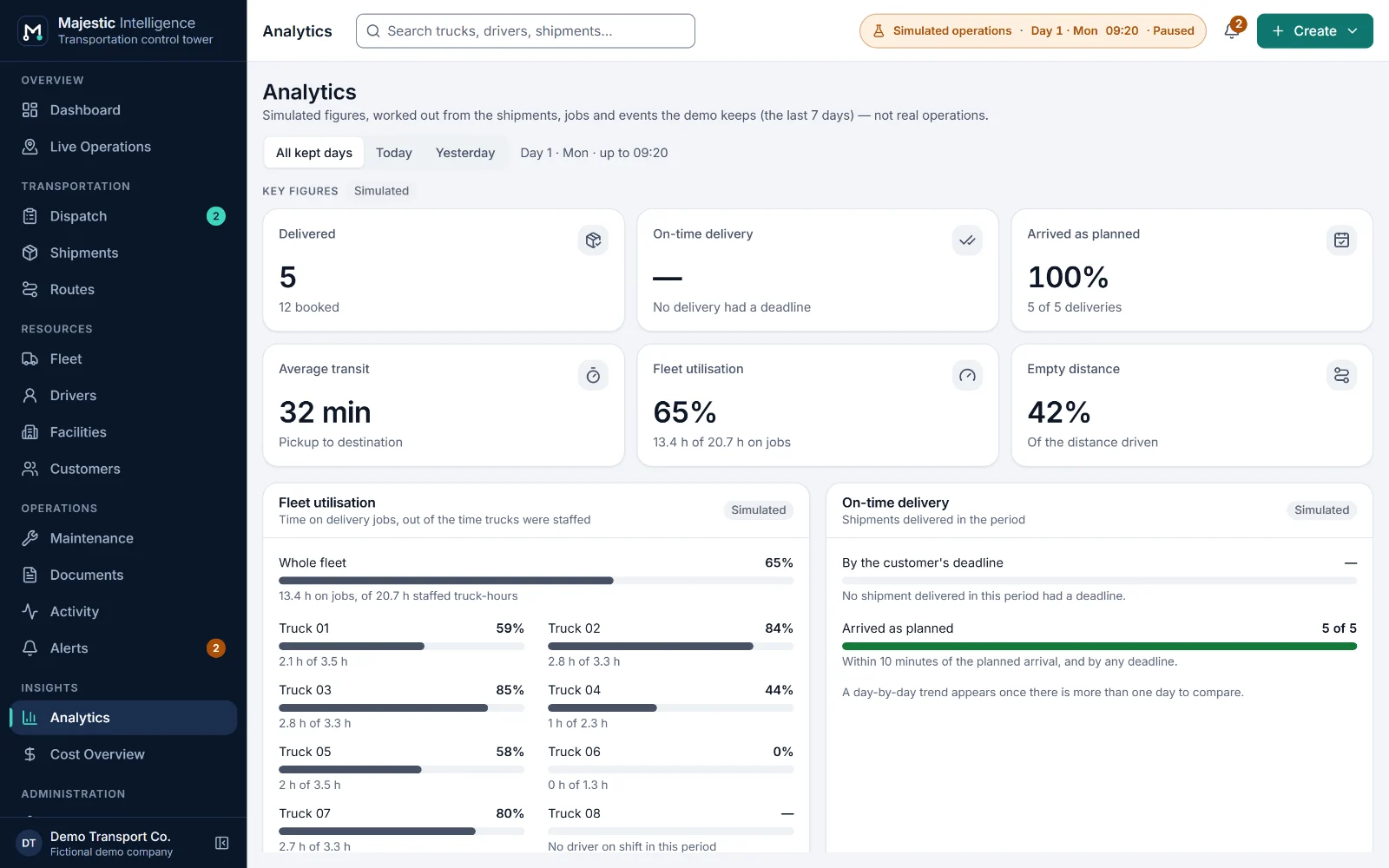
A job is complete when unloading ends; the proof of delivery follows it. Every finished job feeds analytics: on-time delivery, transit, utilisation, empty distance and performance per lane, plus an illustrative cost overview.
- Missing proofs of delivery first in Documents
- Figures for today, yesterday or all days kept
- Revenue, cost and contribution by lane, at example rates
- History exported before it is cleared
The workflow, in detail
The life of a delivery job. In order, every time.
Every delivery job moves through the same stages, and each move is checked before it happens. The application shows nine; here they are in six steps. A truck already at the pickup goes straight from Assigned to Arrived at Pickup.
Assigned
A truck and driver are given the shipment
The assignment is checked first: the truck is in service, its body suits the goods and it has the capacity; the driver holds the right licence and has a shift that covers the whole job, back to the depot.
What you see: The shipment moves to the Assigned column; the bill of lading becomes Expected.
Heading to Pickup
The truck drives empty to the pickup
At the planned departure time the truck leaves on its way to the pickup facility, along the roads its route follows.
What you see: A dashed journey line on the map and an ETA at the pickup.
Loading
Check-in, a dock, and loading
The truck checks in at the gate and takes a dock, the one it reserved on arrival or the first to come free. If every dock is busy it waits in the yard, first come first served.
What you see: The facility’s dock activity, and "Waiting for a dock" if there is a queue.
In Transit
The goods are on the road
After the departure paperwork the bill of lading is signed and the truck leaves with the goods. A delay of more than ten minutes is flagged with its cause.
What you see: A solid journey line, the ETA at the destination and, if late, "Running late" with the reason.
Unloading
Arrival and unloading
Arrival is recorded at the gate with any lateness; the truck checks in, takes a dock and unloads.
What you see: The shipment’s timeline fills in; the destination shows the truck at its dock.
Delivered
Delivered, and the paperwork closed
The proof of delivery is received when the signed copy comes back, or flagged as missing four hours later. The truck becomes available, or returns to its depot.
What you see: The job completes; analytics and the cost overview count it.
A job can be cancelled while it is assigned, or once the truck is at the pickup and before loading starts, but not while it is driving there; the truck becomes available where it stands and the shipment waits for another. A truck left without work away from home drives back to its depot.
Why the picture stays true
One fact, read several ways.
Majestic Intelligence stores one thing about each piece of work: the job's stage. Everything else is worked out from it, so the screens can never disagree. A truck cannot show In Transit while its shipment says Delivered.
| Worked out | Answers | Example |
|---|---|---|
| Truck status | What is this vehicle doing right now?Example: In Transit | In Transit |
| Shipment status | Where are the customer’s goods?Example: In Transit | In Transit |
| Driver status | Is this driver on a job, on shift, off shift or on leave?Example: On a job | On a job |
| Facility activity | What is happening at this site?Example: RAP2: Truck 02 unloading | RAP2: Truck 02 unloading |
| Needs attention | What deserves a decision?Example: Deadline at risk | Deadline at risk |
In the demo
A simulated carrier, running on its own clock.
The demo runs a fictional carrier in California's Inland Empire on simulated time. The day carries on across midnight, and the next day's freight is booked as it would be.
Pause and play
Stop the clock to look closely, then carry on.
1×, 2×, 5× or 15×
At 1×, one real second is one simulated minute.
Skip to 06:00
Jump over the night to the start of the next working day.
Restart operations
Begin the scenario again on your own trucks, sites and routes.
Always labelled
The “Simulated operations” indicator shows the simulated day and time on every screen, and opens the demo controls. Open the demo to try them.
See it working
Watch a simulated carrier run its day.
Open the working product: trucks loading, on the road and unloading across California’s Inland Empire. No sign-up; nothing connects to real systems.
Built by METHODSS
Need a custom logistics solution? Let’s build it together.
METHODSS adapts Majestic Intelligence to your fleet, sites and rules and connects it to your data, or designs and builds new logistics software with you.